> ## Documentation Index
> Fetch the complete documentation index at: https://golang.wapikit.com/llms.txt
> Use this file to discover all available pages before exploring further.
# Configuring Webhook
> Learn how to configure the webhook for your Whatsapp Business Account
To receive messages from your customers, you need to configure a webhook for your Whatsapp Business Account. The webhook is a URL that you provide to Whatsapp to send messages to your application.
## Configuring Webhook for local development setup
### Getting a public URL for your local development setup
You may sometimes face an error on the whatsapp webhook management dashboard saying that the URL is malicious in case when you are using NGROK, in that case you must go ahead with using cloudflare tunnel.
* [Using NGROK](#ngrok)
* [Using Cloudflare Tunnel](#cloudflare-tunnel)
#### NGROK
If you are developing your application locally, you can use [ngrok](https://ngrok.com/) to expose your local server to the internet.
To use ngrok, follow these steps:
1. Download and install ngrok from [here](https://ngrok.com/download).
2. Run the following command in your terminal to expose your local server to the internet:
```bash theme={null}
ngrok http http://localhost:
```
3. You will see something like this in your terminal:
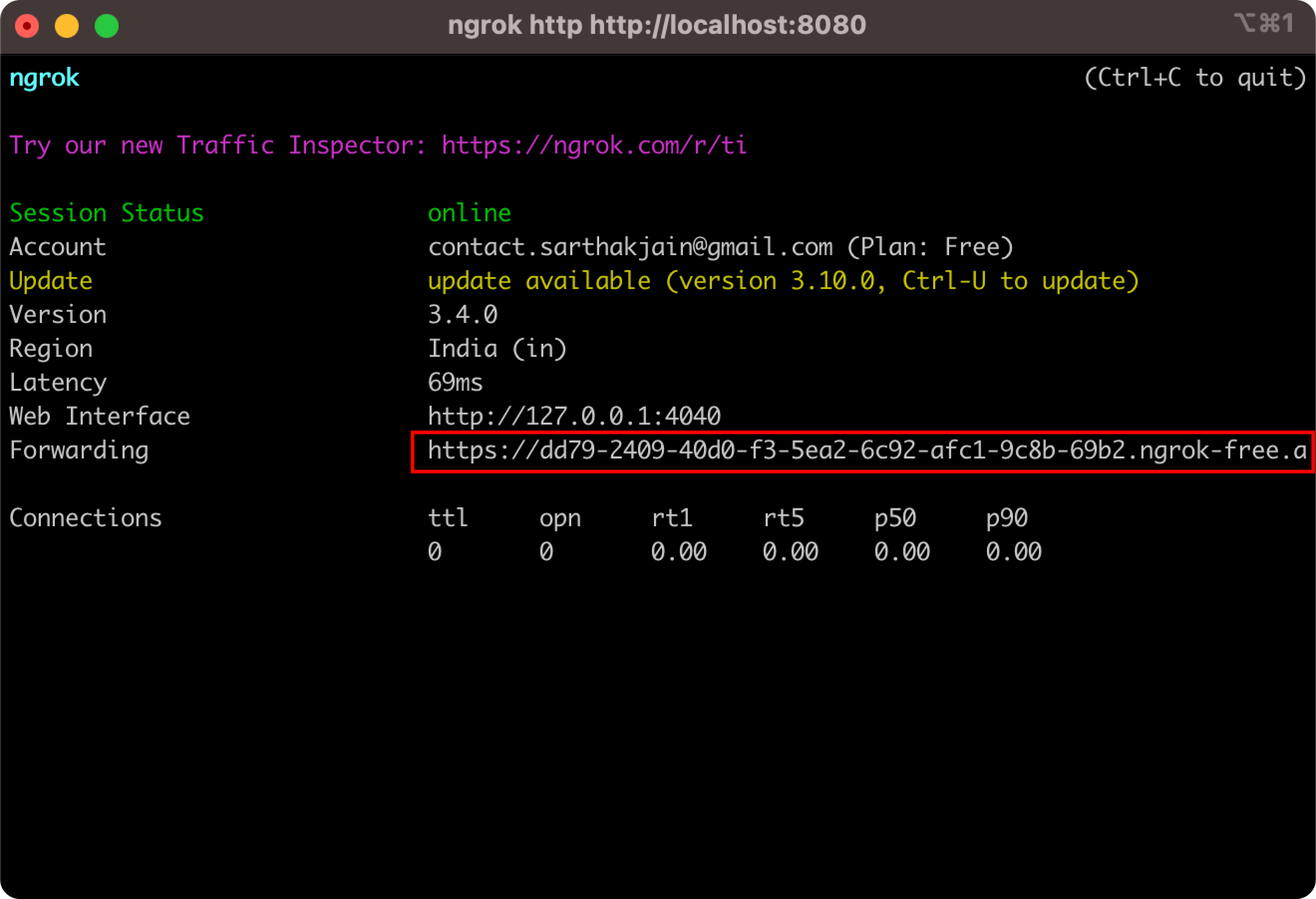 Make sure to replace `` with the port number on which your application is running.
#### Cloudflare Tunnel
To use cloudflare tunnel, follow these steps:
1. Download and install cloudflare tunnel from [here](https://developers.cloudflare.com/cloudflare-one/connections/connect-apps/install-and-setup/installation).
2. Run the following command in your terminal to expose your local server to the internet:
```bash theme={null}
cloudflared tunnel --url http://localhost:
```
3. You will see something like this in your terminal:
Make sure to replace `` with the port number on which your application is running.
#### Cloudflare Tunnel
To use cloudflare tunnel, follow these steps:
1. Download and install cloudflare tunnel from [here](https://developers.cloudflare.com/cloudflare-one/connections/connect-apps/install-and-setup/installation).
2. Run the following command in your terminal to expose your local server to the internet:
```bash theme={null}
cloudflared tunnel --url http://localhost:
```
3. You will see something like this in your terminal:
 Make sure to replace `` with the port number on which your application is running.
### Submitting URL to whatsapp business platform
Follow the steps below to submit your webhook URL to the Whatsapp Business Platform and enable incoming events routing to your local development setup:
Visit your application dashboard via [Meta Developer Portal](https://developers.facebook.com/apps)
Make sure to replace `` with the port number on which your application is running.
### Submitting URL to whatsapp business platform
Follow the steps below to submit your webhook URL to the Whatsapp Business Platform and enable incoming events routing to your local development setup:
Visit your application dashboard via [Meta Developer Portal](https://developers.facebook.com/apps)
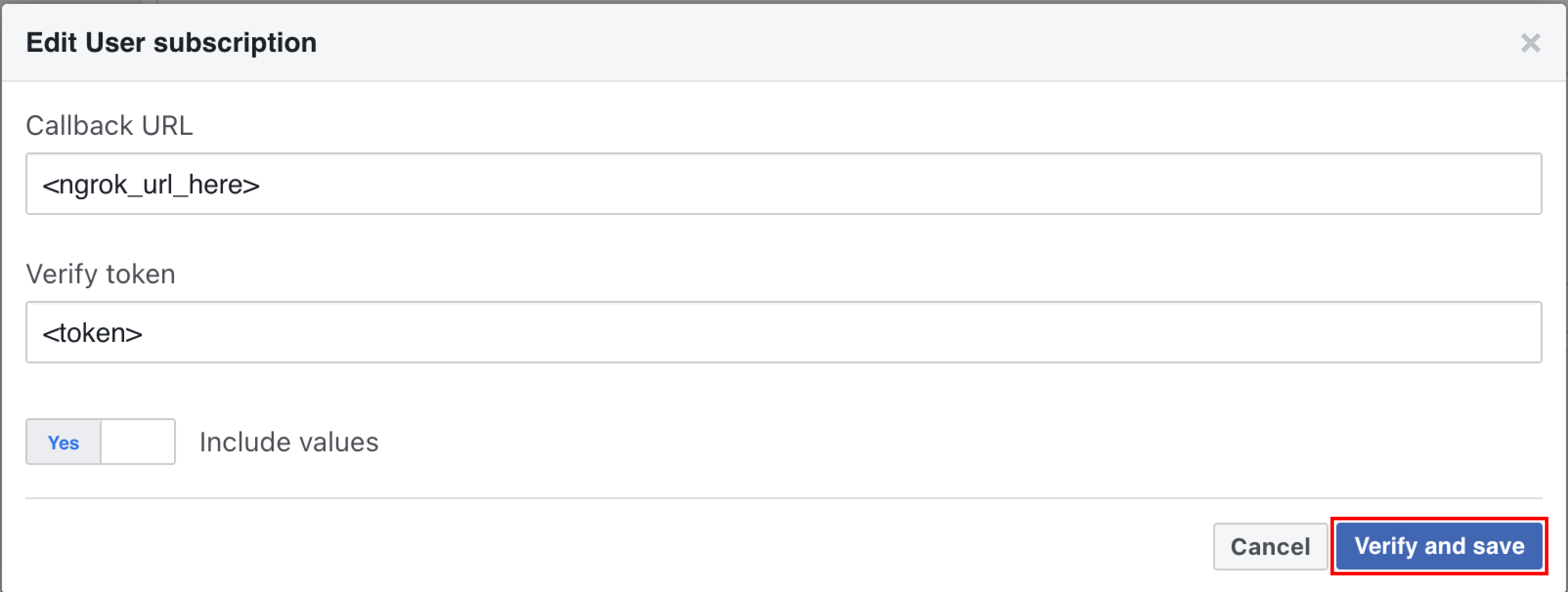
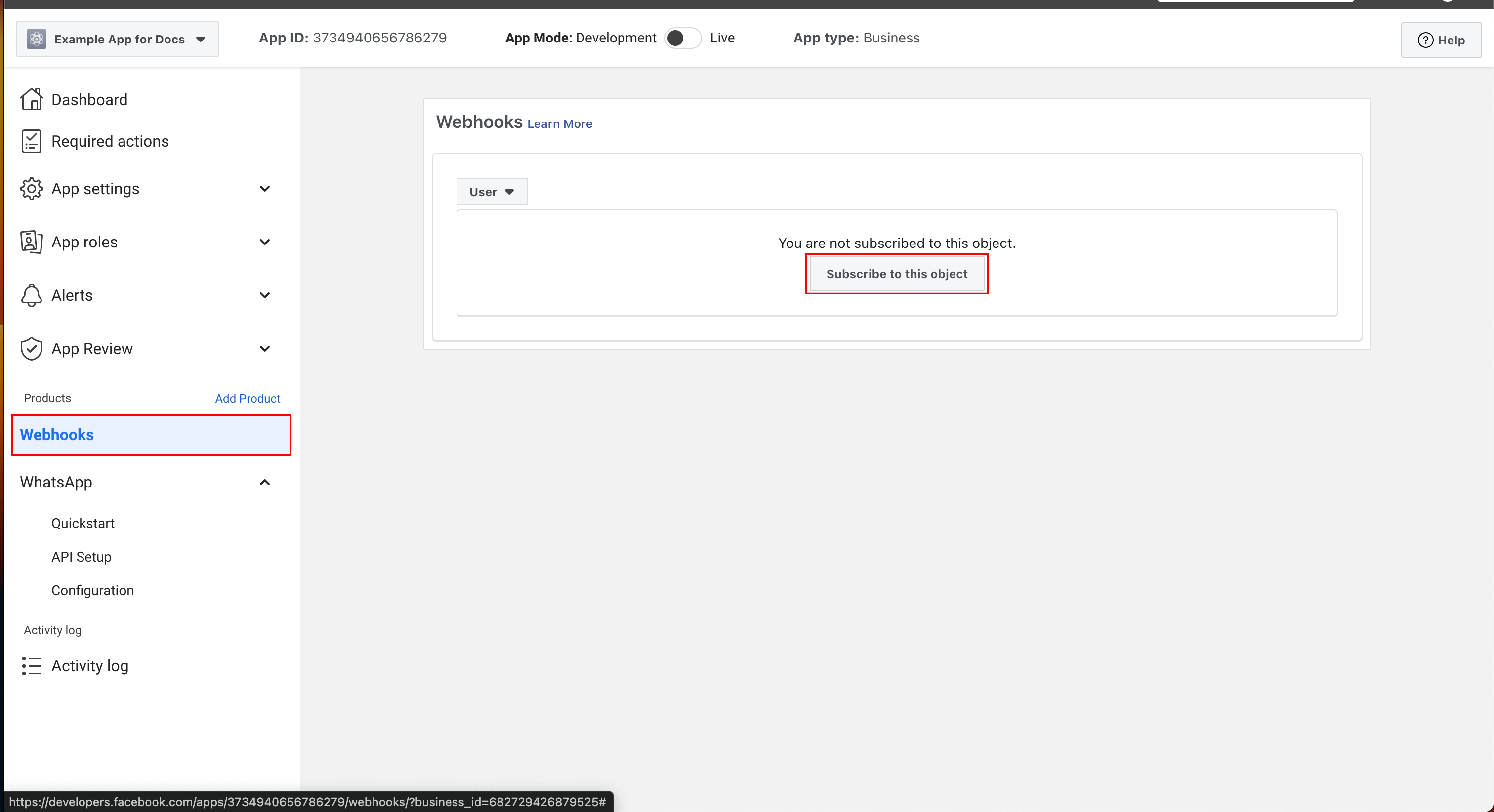 Webhook secret is the same string which you have used in your Wapi.go Application Client.
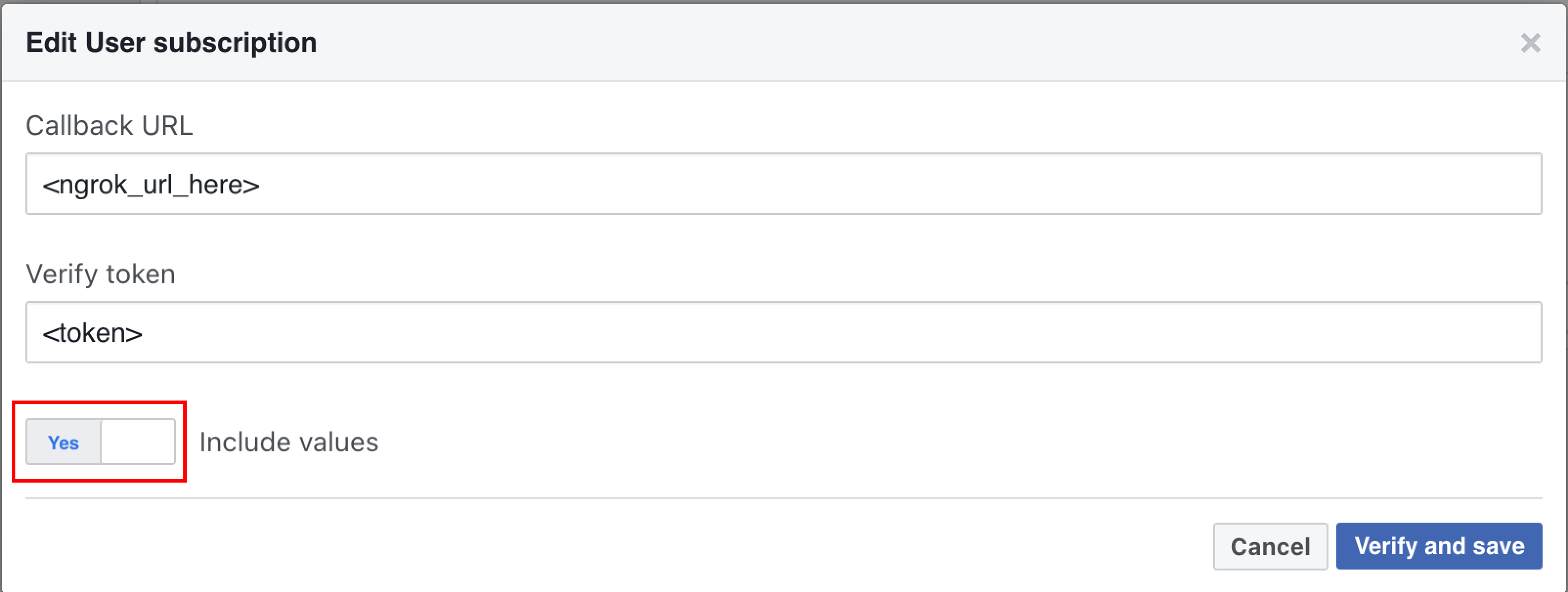 Make sure your [Wapi.go local application](/guide/building-your-application/creating-wapi-client) is up and running before proceeding with verify and save process.